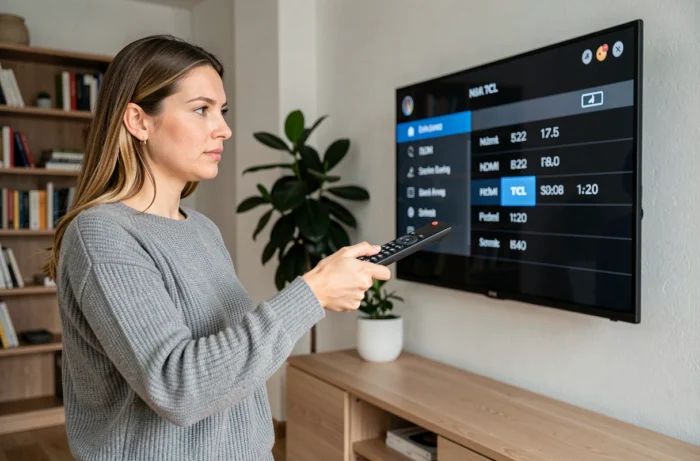
You connect a decoder, a console, or a Fire Stick to your TCL TV, and every time you turn it on, the home screen appears. You then have to grab the remote, navigate through the sources, and select the correct HDMI input. This daily task has a simple solution: configure the TV to start directly on the HDMI input of your choice.
The CEC Protocol and Its Limitations on TCL TVs
Before adjusting the settings, it’s important to understand what happens behind the scenes. The CEC (Consumer Electronics Control) protocol allows devices connected via HDMI to communicate with each other. When you turn on your console, it sends a signal to the TV to switch to the correct port.
On TCL TVs, this function is called T-Link (HDMI CEC). It can be found in the system settings, often under a “Device Connection” or “Inputs” menu. When T-Link is activated and the connected device supports CEC, the TV automatically switches to the relevant input.
The issue is that CEC only works if the connected device sends a signal at startup. An older decoder or a basic media player doesn’t always do this. In this case, the TV remains stuck on the home screen. Knowing how to turn on a TCL TV directly to HDMI then requires other settings beyond simple CEC.
“Power on” Setting on TCL Roku TV: Choose the HDMI Input at Startup
Do you have a TCL model running Roku OS? Good news: the system offers a native setting to define the startup behavior. No need for third-party apps or complex manipulations.
Go to the following menu:
- Settings > System > Power > Power on: three options appear. “Home screen” opens the Roku home screen, “Last input” resumes the last source used, and “Specific input” allows you to choose a specific HDMI port.
- Select “Specific input,” then designate the HDMI port to which your device is connected (HDMI 1, HDMI 2, etc.).
- Restart the TV to check. It should turn on directly to the chosen input, without going through the Roku interface.
The “Last input” option may seem sufficient, but it poses a practical problem. If someone uses a Roku app before turning off the TV, the next startup won’t display your decoder. “Specific input” ensures the same HDMI port at every startup, regardless of what happened before the shutdown.
TCL Google TV: Configure Startup to HDMI
Recent TCL models run on Google TV. The interface is different from Roku OS, and the menus do not use the same titles.
Activate T-Link and Automatic Startup
Open the TV settings, then look for the “Inputs” or “Device Connection” section. Activate T-Link (HDMI CEC) if it is not already done. This step allows the TV to detect signals sent by your HDMI devices.
On some Google TV models from 2024 and 2025, an additional setting exists in the power options. It manages the cold startup behavior, meaning after a complete power cut or an OS restart. This setting can force the display of a specific HDMI input at startup, even if the connected device does not send any CEC signal.
When the Native Setting Is Not Enough
Some versions of Google TV do not offer a “default input at startup” option in their menus. The Google TV home screen always appears, and CEC only switches to HDMI once the signal is received from the connected device.
In this case, an app called AutoHDMI can solve the problem. It runs directly on the TV and detects a cold startup. AutoHDMI then sends the command to switch to the chosen HDMI input, without waiting for a CEC signal from the connected device. This software solution compensates for the lack of a native setting on models that do not have it.
HDMI Cable and Port Used: Two Details That Change Everything
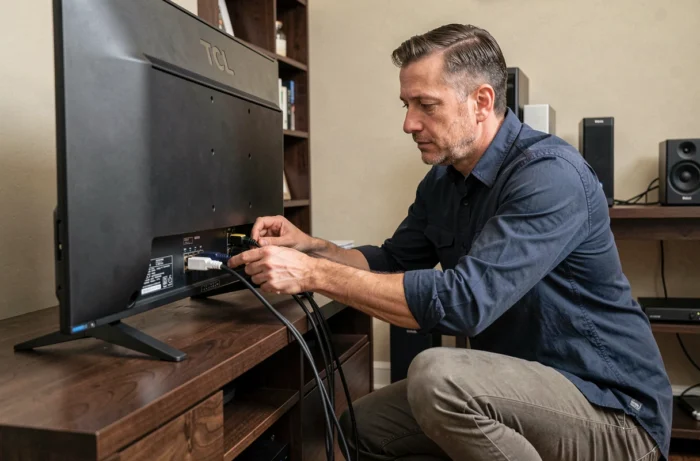
The choice of HDMI port is important. On most TCL TVs, HDMI port 1 is the one that best manages CEC and ARC functions. If you connect your main device to another port, some automatic switching functions may not respond correctly.
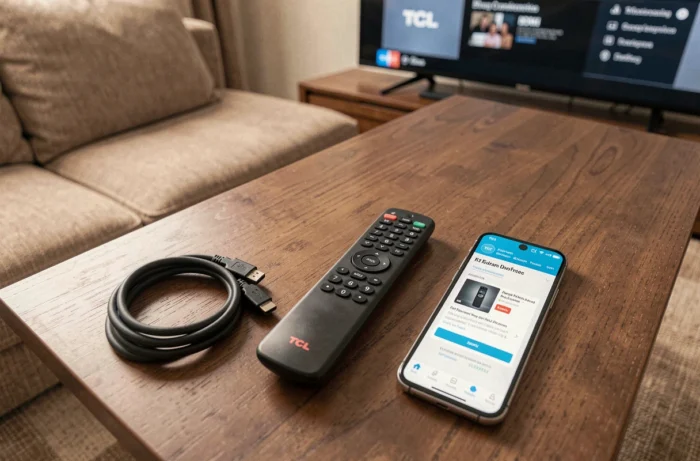
Also, check your cable. An old or damaged HDMI cable can prevent CEC communication between the TV and the device. The cable must support the HDMI standard corresponding to your devices for command transmission to work.
- Connect your main device (decoder, console, Fire Stick) to HDMI port 1 or the one marked “ARC” on the back of the TV.
- Use a working HDMI cable that is compatible with your device’s resolution.
- After connecting, restart the TV and check that T-Link properly detects the device in the “Inputs” menu.
Resolving an HDMI Startup That No Longer Works
You have configured everything, yet the TV returns to the home screen? A few quick checks can help identify the cause.
Start by unplugging the HDMI cable from both ends (TV and device), then plug it back in. A loose connection can interrupt CEC communication. Next, disable and then re-enable T-Link in the settings. This restart of the protocol forces the TV to rescan connected devices.
If the problem persists after a system update, the firmware may have reset some input settings. Go back to the power or startup settings to verify that your HDMI input choice is still recorded.
On TCL Roku TVs, a complete restart via Settings > System > Power > System restart often puts things back in order. On Google TV, a simple power cycle (waiting about ten seconds before plugging back in) may be enough to restore the expected behavior.
The HDMI startup setting on a TCL TV primarily depends on the installed system: Roku OS offers a direct and reliable menu, while Google TV sometimes requires an additional tool. In both cases, checking the used port, the cable, and the state of the CEC protocol remains the first reflex when automatic switching refuses to cooperate.